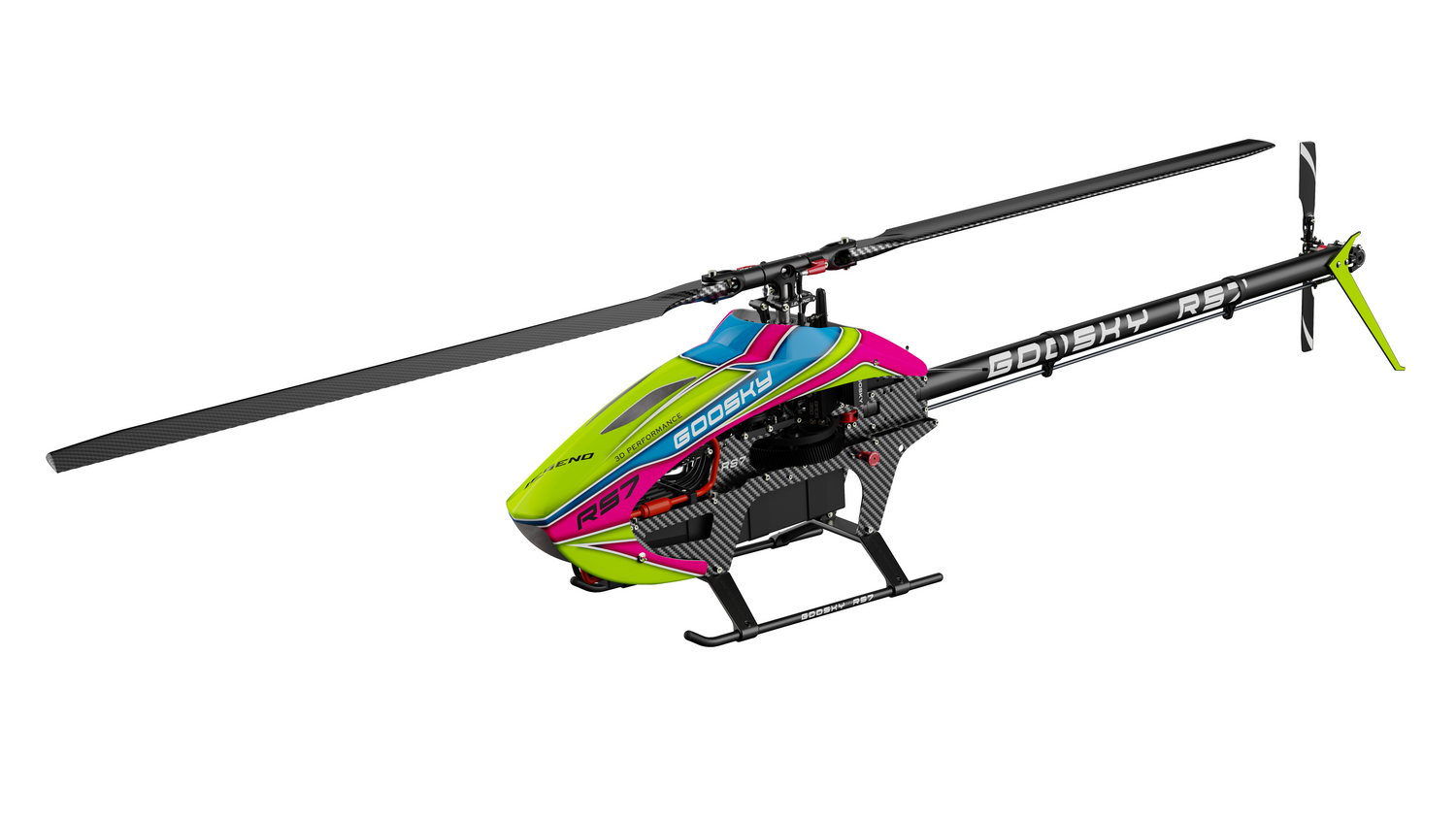

Goosky RS4 Venom Combo 80A ESC Firmware Update for Rotorflight Telemetry
Goosky RS4 Venom Combo 80A ESC Firmware Update for Rotorflight Telemetry
This guide explains how to update the 80A ESC included with the Goosky RS4 Venom Combo to support Rotorflight telemetry. The update is performed on a Windows PC using the included HobbyWing USB Link software and a HobbyWing LCD Program Box.
Required Items
- Goosky RS4 Venom Combo 80A ESC
- HobbyWing LCD Program Box
- USB-C cable for the LCD Program Box
- Windows PC or laptop
- Goosky RS4 Venom Combo 80A ESC Rotorflight telemetry firmware update package
Download
Download the Goosky RS4 Venom Combo 80A ESC Rotorflight telemetry firmware package here:
Download Goosky RS4 Venom Combo 80A ESC Firmware Update
Step 1 — Download and Extract the File
Download the firmware update package from the link above and extract it to a folder on your Windows computer.
After extracting the file, open this folder:
HobbyWing USB Link-80A-GS-20251212
Inside the folder, run the application:
Hobbywing USB Link.exe
Step 2 — Connect the ESC and Programmer
- Connect the ESC programming port from the Goosky RS4 Venom Combo 80A ESC to the HobbyWing LCD Program Box.
- Connect the HobbyWing LCD Program Box USB-C port to your Windows PC or laptop.
- Power the ESC as required for the firmware update.
- Launch Hobbywing USB Link.exe.
Step 3 — Change the Software Language to English
When the HobbyWing USB Link software first opens, the top menu may appear in Chinese. Select the first menu on the top-left. This is the File menu. From the dropdown, select English.
Before — Chinese Menu

After — English Menu

Step 4 — Select Electronic Speed Controller
From the top menu, select:
Device(D) → Electronic Speed Controller
This tells the HobbyWing USB Link software that you are connecting to the ESC, not only the LCD Program Box.
Device Menu

Step 5 — Connect to the ESC
At the bottom of the HobbyWing USB Link window, click the Connect button.
The connection status should show the ESC connection. Once connected, the firmware update option becomes available on the left-side menu.
Connection Status / Connect Button

Step 6 — Open Firmware Update
After the ESC is connected, look at the left-side icon menu in the HobbyWing USB Link software. Select the last icon labeled Firmware Update.
The Firmware Update screen is where you select the firmware version to install on the ESC.
Firmware Update Button

Step 7 — Select and Install the Correct Firmware
On the Firmware Update screen, select the firmware version:
PL-04.1.07-GS
This is the HobbyWing telemetry firmware and is the correct version for Rotorflight telemetry support.
- Confirm the Goosky RS4 Venom Combo 80A ESC is detected by the HobbyWing USB Link software.
- Select PL-04.1.07-GS.
- Start the firmware update.
- Wait until the software confirms the update is complete.
- Disconnect the ESC only after the update has fully finished.
After the Update
After the firmware update is complete, install the ESC back into the Goosky RS4 Venom and configure Rotorflight ESC telemetry as needed. The updated PL-04.1.07-GS firmware is required before Rotorflight can read supported HobbyWing telemetry from the Goosky RS4 Venom Combo 80A ESC.
Firmware Version Reference
| Firmware Version | Telemetry Type | Use With Rotorflight? |
|---|---|---|
| PL-04.1.07-GS | HobbyWing telemetry | Yes |
| PL-04.1.06-GS | VBar telemetry | No |
Troubleshooting
| Issue | What to Check |
|---|---|
| Software opens in Chinese | Use the first top-left menu and select English. |
| ESC does not connect | Confirm the ESC programming port is connected to the LCD Program Box and the LCD Program Box is connected to the PC by USB-C. |
| Firmware Update option is not available | Confirm the software is connected to the ESC first. The Firmware Update icon should be selected after the ESC connection is established. |
| Wrong device type selected | Go to Device(D) and select Electronic Speed Controller. |
| Rotorflight telemetry does not work after updating | Confirm the ESC was updated to PL-04.1.07-GS, not PL-04.1.06-GS. |
| Update fails or stops | Check USB cable, ESC power, connection order, and Windows permissions before attempting the update again. |
Copyright © 2026 New England RC LLC. All rights reserved.
These guides and support articles are provided for educational and informational purposes only for customers and hobbyists using RC helicopters, radios, electronics, and related equipment.
This content may not be copied, republished, redistributed, or reproduced in whole or in part without written permission from New England RC LLC.
Product names, firmware names, and brand names are trademarks of their respective owners and are used only for compatibility and identification purposes.